QUICK ANSWER
The official Steam listing gives a 2.4 GHz Core 2 Duo or AMD 64 X2 4400, 2 GB RAM, a GeForce 8600 or Radeon HD 2600, DirectX 9, and 10 GB of storage as its minimum. The recommended list moves to a 3 GHz Core 2 Duo or AMD X2 5000 / Phenom X4 9600, 4 GB RAM, a GeForce 2xx or Radeon HD 6xxx class card, and broadband internet. These are the publisher's release-era requirements, not a promise that every modern Windows, driver, controller, or storefront setup will behave identically.
Official PC requirements at a glance
| Category | Minimum | Recommended |
|---|---|---|
| Operating system | Windows XP, Vista, or 7 | Steam lists no separate newer OS target |
| Processor | Intel Core2 Duo 2.4 GHz or AMD 64 X2 4400 | Intel Core2 Duo 3 GHz, AMD X2 5000, or AMD Phenom X4 9600 |
| Memory | 2 GB RAM | 4 GB RAM |
| Graphics | GeForce 8600 (2006+) or Radeon HD 2600 | GeForce 2xx or Radeon HD 6xxx series or greater |
| DirectX | DirectX 9 | DirectX 9 |
| Storage | 10 GB HD space | Not separately stated |
| Audio / network | 100% DirectX 9 compatible audio device | Broadband internet connection |
What the official list actually says
Steam's current product data separates minimum and recommended PC requirements. The minimum row names Windows XP, Vista, or 7, a 2.4 GHz Intel Core2 Duo or AMD 64 X2 4400, 2 GB RAM, a 2006-or-later GeForce 8600 or Radeon HD 2600, DirectX 9, 10 GB of hard-drive space, and a DirectX 9 compatible audio device. The recommended row asks for a 3 GHz Core2 Duo, AMD X2 5000, or AMD Phenom X4 9600, 4 GB RAM, a GeForce 2xx or Radeon HD 6xxx series card or greater, DirectX 9, and a broadband connection.
Search focus: lord of the rings war in the north system requirements
This page treats lord of the rings war in the north system requirements as a practical question. Use the answer as a starting point, then verify the platform, region, version, or party condition that could change the next step.
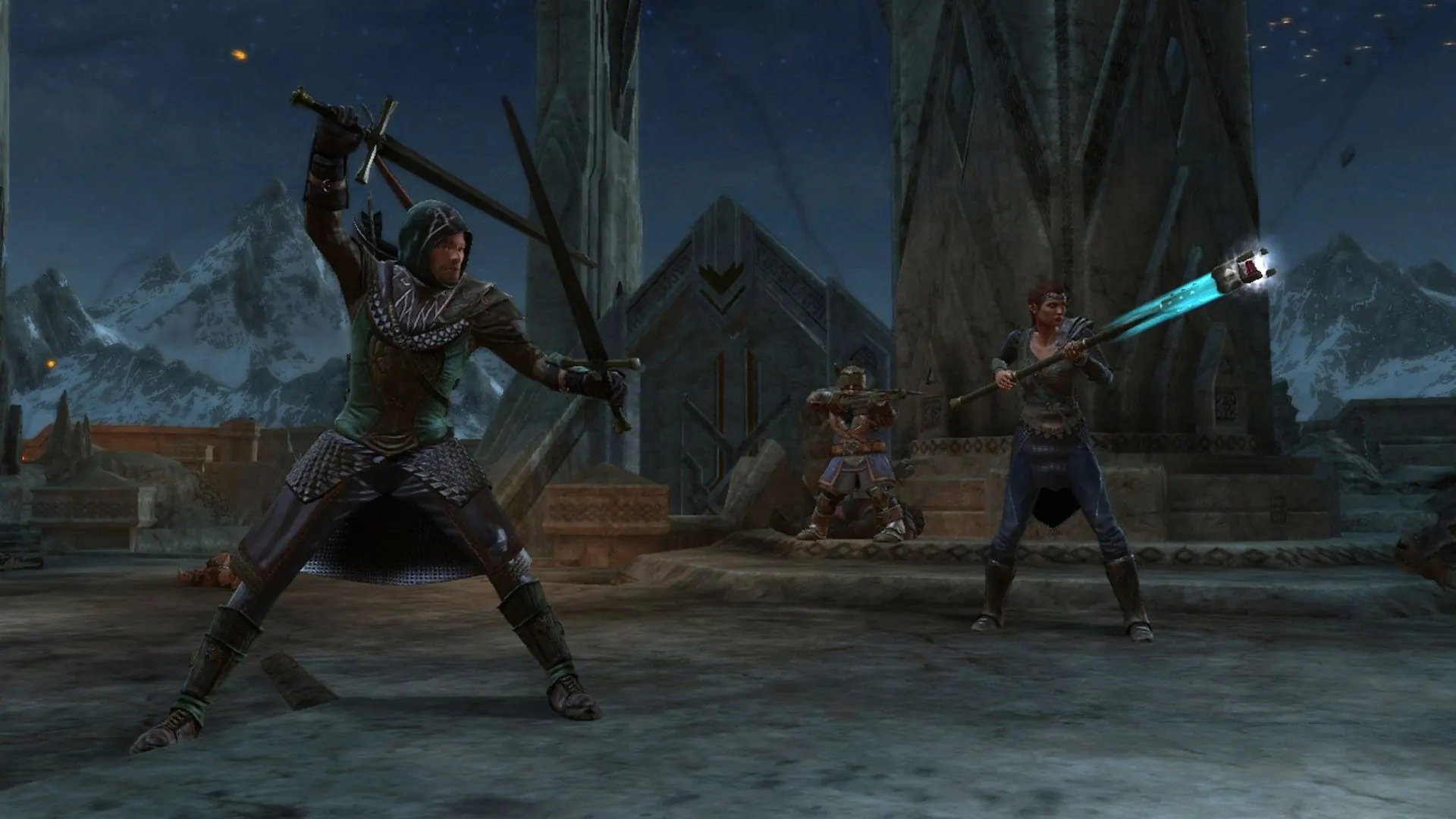
Read the numbers as a release-era baseline
The list describes the PC target around the game's 2011 release. A modern computer can exceed every number and still need a compatibility check because an old game may depend on display modes, input layers, redistributables, or store wrappers that are not represented by RAM and GPU names. Conversely, a machine that looks below one line may still launch in a particular setup. The table is a starting point for research, not a measured benchmark or an FPS guarantee.
Minimum versus recommended is a decision boundary
Minimum means the published floor for the original PC product context; it does not mean that every visual option, co-op session, or modern background workload will be comfortable. Recommended adds memory, CPU headroom, a newer graphics family for the period, and broadband internet. It still does not define a current Windows version, monitor resolution, controller adapter, or regional storefront behavior. Keep those questions separate so a requirements page does not overpromise.
What the table cannot verify
Steam's public fields do not tell us the exact driver version, frame-rate target, ultrawide behavior, modern overlay compatibility, or whether a particular controller wrapper is needed. They also do not prove that console availability or a different store edition shares the same PC profile. Use the official product page to confirm the listing you are buying or launching, then test your own platform with the reversible checks below.

Storage and broadband are easy to misread
The 10 GB hard-drive entry is an installation-era figure, not a guarantee about free space after patches, client files, shader caches, save backups, or a second language pack. Broadband internet appears on the recommended row, but that line is not a network health test and it does not promise that every multiplayer route is active today. For connection symptoms, use the multiplayer guide and record the edition, host, and map instead of changing hardware first.
Keep requirements separate from troubleshooting
If the PC meets the published list but the game does not start, the next question is not automatically a new graphics card. Check the official client files, the selected display mode, the intended controller, and one reversible setting at a time. The PC fixes page covers that path. This page stays focused on the published hardware baseline so it can be cited without turning a diagnosis into a shopping list.
Modern Windows needs a cautious interpretation
The Steam record names older Windows releases because that was the supported product context when the game shipped. It does not state that every current Windows build is unsupported, and it does not certify every current build as supported. Treat compatibility as an observation to reproduce on your machine. Note the OS build, storefront, display mode, and controller before applying a community suggestion, and keep a clean install for comparison.
Use the requirements to plan a low-risk test
A useful first pass is short: compare your CPU, RAM, graphics adapter, DirectX environment, free space, and connection with the table; launch a familiar area; then test the input and display you intend to use. If the result differs from the published expectation, preserve the baseline and move to a targeted fix. Do not download an unknown executable or call a community claim an official requirement. The goal is a reproducible decision, not a confident guess.
Answer the immediate question first
The War in the North system requirements page is arranged for a player who has a decision in front of them, not for someone collecting trivia. Read the opening answer, identify the condition that could change it, and then use the linked route that handles the next action. This order keeps a quick lookup useful while still making the evidence and limits visible. It also prevents a historical platform fact, a community observation, and an editorial recommendation from being mistaken for the same kind of claim.
Turn the note into a session plan
Before a chapter begins, choose one small outcome from the War in the North system requirements page. A group might assign a role, check one route, confirm one platform detail, or mark one objective. Write the decision in plain language so every player can react to the same plan. If the room changes, keep the decision reversible: pause, regroup, and change the next step instead of treating an early guess as a permanent build or promise.
Separate facts from useful interpretation
Some details on War in the North system requirements come from official store or platform material, while others are practical reading of the game's co-op rhythm. The page keeps those categories distinct because they age differently. Official metadata is the right place to confirm product status; a role suggestion is a starting point that should be tested in your own party. When the source does not answer a question, the copy says so rather than filling the gap with a confident invention.
Use comparisons with a clear purpose
A comparison is valuable only when it changes what a player does next. On War in the North system requirements, compare options by the problem they solve: space, recovery, interruption, exploration time, or technical risk. A larger number or a familiar label is not automatically better. Note the platform, difficulty, party size, and current objective before deciding. That context explains why two players can make different choices and both be following a sensible plan.
Recover from an imperfect run
A first attempt does not need to be perfect to be useful. If the War in the North system requirements page points to a missed objective or an unclear platform detail, record it as provisional and continue with the safe part of the route. Co-op groups lose time when they restart from a vague memory. A short note, a screenshot from the game, or the exact store wording gives the next run something concrete to verify.
Know when the guide stops
This companion does not replace the game, host unauthorized files, or promise that an older release is available in every region. The War in the North system requirements page stops at the point where a reader needs the official store, platform holder, or their own in-game record. That boundary is deliberate: it keeps the guide useful without pretending to control pricing, catalog changes, account state, controller drivers, or community discoveries that the site cannot independently guarantee.
Check the version-sensitive details
Older releases can differ because of region, hardware, storefront rules, patches, input devices, and the condition of a second-hand copy. When War in the North system requirements depends on one of those variables, confirm it immediately before spending money or changing a working setup. Treat a community note as a lead, not as an official statistic. The source ledger records the first-party material used here so a later update can replace a stale assumption instead of silently carrying it forward.
Continue through the related routes
The most useful path is usually short: open War in the North system requirements, take one action, then move to the Party Planner, Classes, Co-op Guide, or the relevant checklist. Those pages are linked so a reader can keep the same language and locale while moving from discovery to execution. When the goal is completion, pair the Walkthrough with Collectibles and Achievements. When the goal is a stable first session, start with one class per role and use the PC Fixes page only for reversible checks.
How to compare your PC safely
1. Record the exact setup
Write down the storefront, Windows version, CPU, installed RAM, graphics adapter, display mode, controller, free storage, and whether the problem is solo or multiplayer.
2. Match categories, not brand slogans
Compare the machine's actual CPU and GPU model with the table. A newer product name alone does not prove that its driver, display mode, or input layer will behave the same way.
3. Keep a clean baseline
Launch a short familiar area with overlays, remappers, and optional file changes disabled for the first comparison. Keep saves and original files intact.
4. Change one reversible variable
Try the official client file check, a safe windowed mode, or one controller change. Repeat the same test and record what changed before adding another fix.
5. Escalate with evidence
If the result still differs, take the recorded specs and symptom to the official platform page or a clearly relevant community discussion. Do not treat a repacked installer or unknown executable as a requirements fix.
War in the North system requirements FAQ
What are the minimum War in the North system requirements?
Steam lists Windows XP, Vista, or 7, a 2.4 GHz Core2 Duo or AMD 64 X2 4400, 2 GB RAM, a GeForce 8600 or Radeon HD 2600, DirectX 9, 10 GB of storage, and a DirectX 9 compatible audio device. These are release-era published requirements, not a modern benchmark.
What are the recommended PC specs for War in the North?
The recommended row lists a 3 GHz Core2 Duo, AMD X2 5000, or AMD Phenom X4 9600, 4 GB RAM, a GeForce 2xx or Radeon HD 6xxx series card or greater, DirectX 9, and broadband internet. Steam does not provide a separate modern Windows target in that row.
Can a modern Windows PC run War in the North?
The official list names older Windows releases and does not certify every current build. A modern PC may exceed the hardware numbers while still needing a display, input, client, or compatibility check. Test your exact storefront and OS with reversible steps.
Does meeting the requirements guarantee multiplayer?
No. The requirements page provides hardware context, while multiplayer depends on the exact edition, platform, account, network path, and map load. Use a short private test and the multiplayer troubleshooting guide for that question.
Is 10 GB enough for the PC install?
10 GB is the storage figure shown by Steam for the original product listing. Leave additional free space for the client, patches, caches, saves, and backups, and use the live storefront as the final installation reference.
Sources and limits
The official Steam product page and its public app data are the first-party source for the requirements table. PCGamingWiki is a community reference for compatibility observations; it is not a publisher support statement. The figures were checked on 2026-11-07 and should be reread on the live store page before a new install.
- Official Steam product pageCurrent product metadata, PC requirements, features, and store media.
- PCGamingWiki game pageCommunity notes for compatibility and troubleshooting leads; verify by edition and date.